Help Center
About the Admin Portal cover image

About the Admin Portal

The Spot Parking Admin Portal is the central dashboard for managing parking operations across your organization. Designed for university and city enforcement teams, it offers real-time insights into lot occupancy, violation trends, and staff performance. Administrators can configure enforcement settings, manage users, adjust permit types, and oversee citations — all from a single, secure interface. With visual dashboards and intuitive controls, the portal streamlines operations, improves compliance, and helps optimize parking availability.
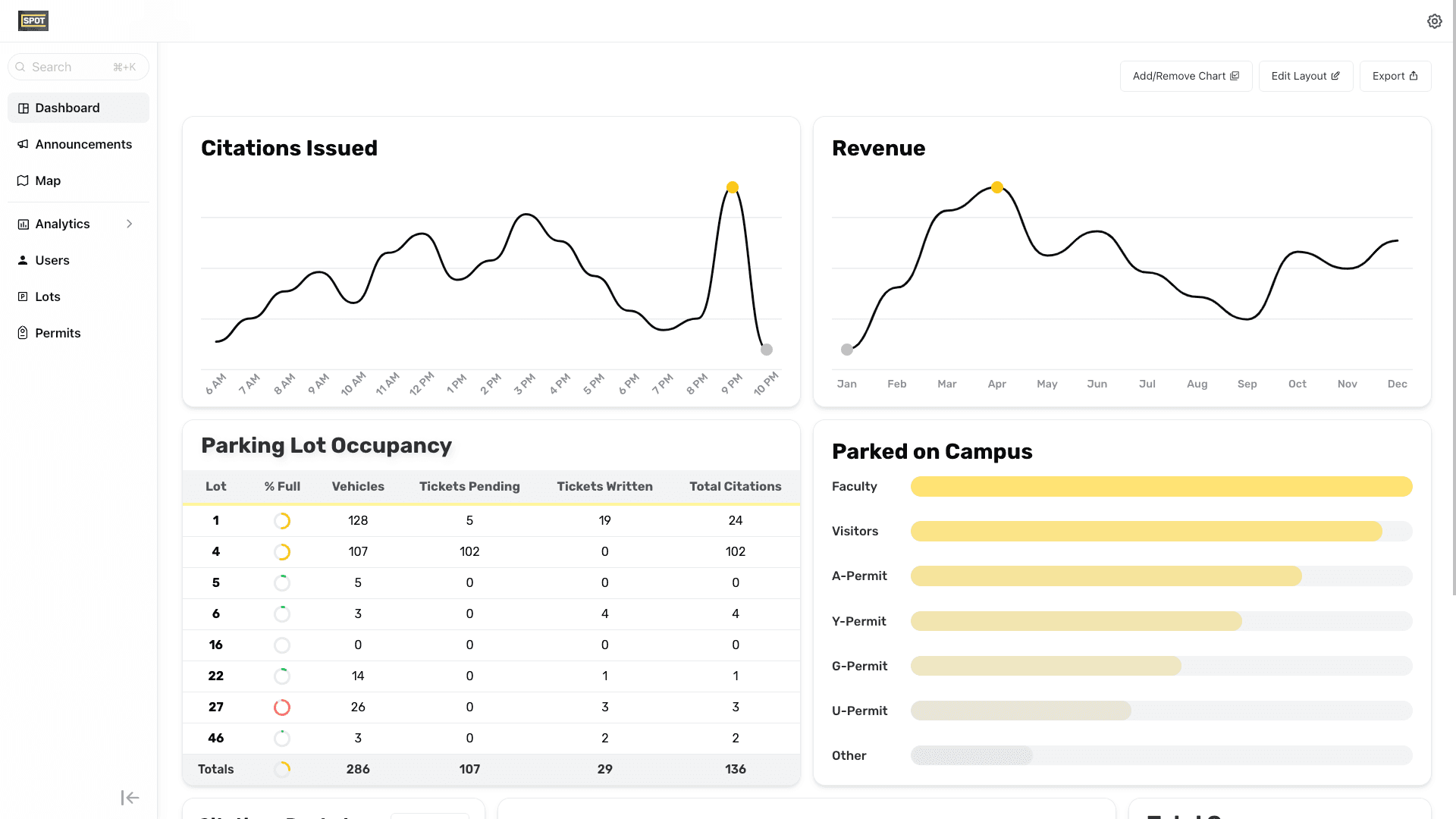
The #https://admin.spotparking.app/ | Dashboard# is used by parking enforcement administration to see statistical trends and analytics about the parking enforcement and general parking on campus. You can see the percent occupancy and a detailed summary of the parking violations of any given lot as well as the campus as a whole. You can also activate or deactivate auto-billing for each individual lot. You can also see statistics about your employees and how many citations they have given.
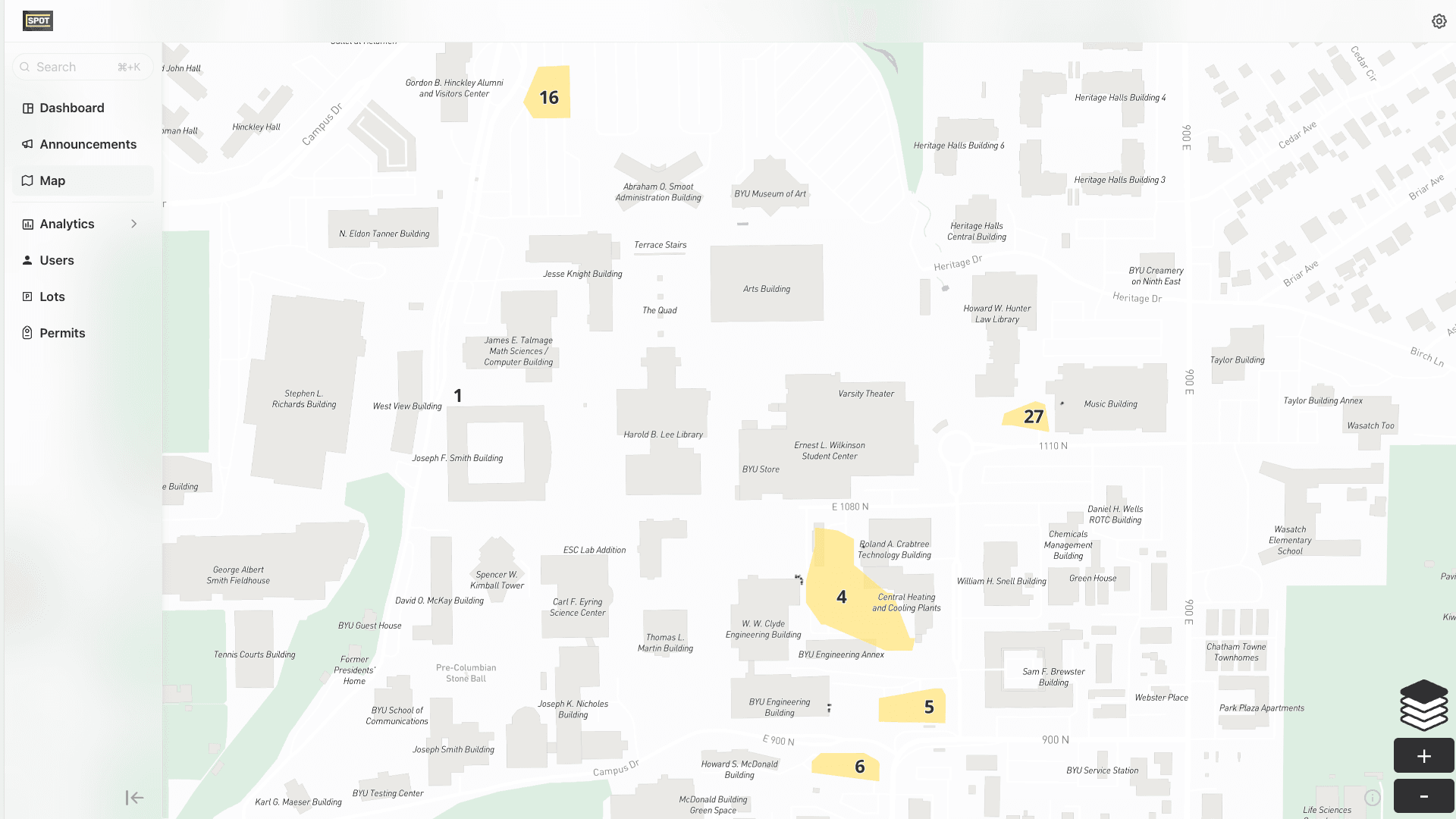
In the #https://admin.spotparking.app/map | Live Map# you can see a live updating map of all the parking spots on campus as well if they are vacant, occupied legally (green spot), or occupied illegally (red spot). If you click on any spot that is occupied you can see information about the vehicle.
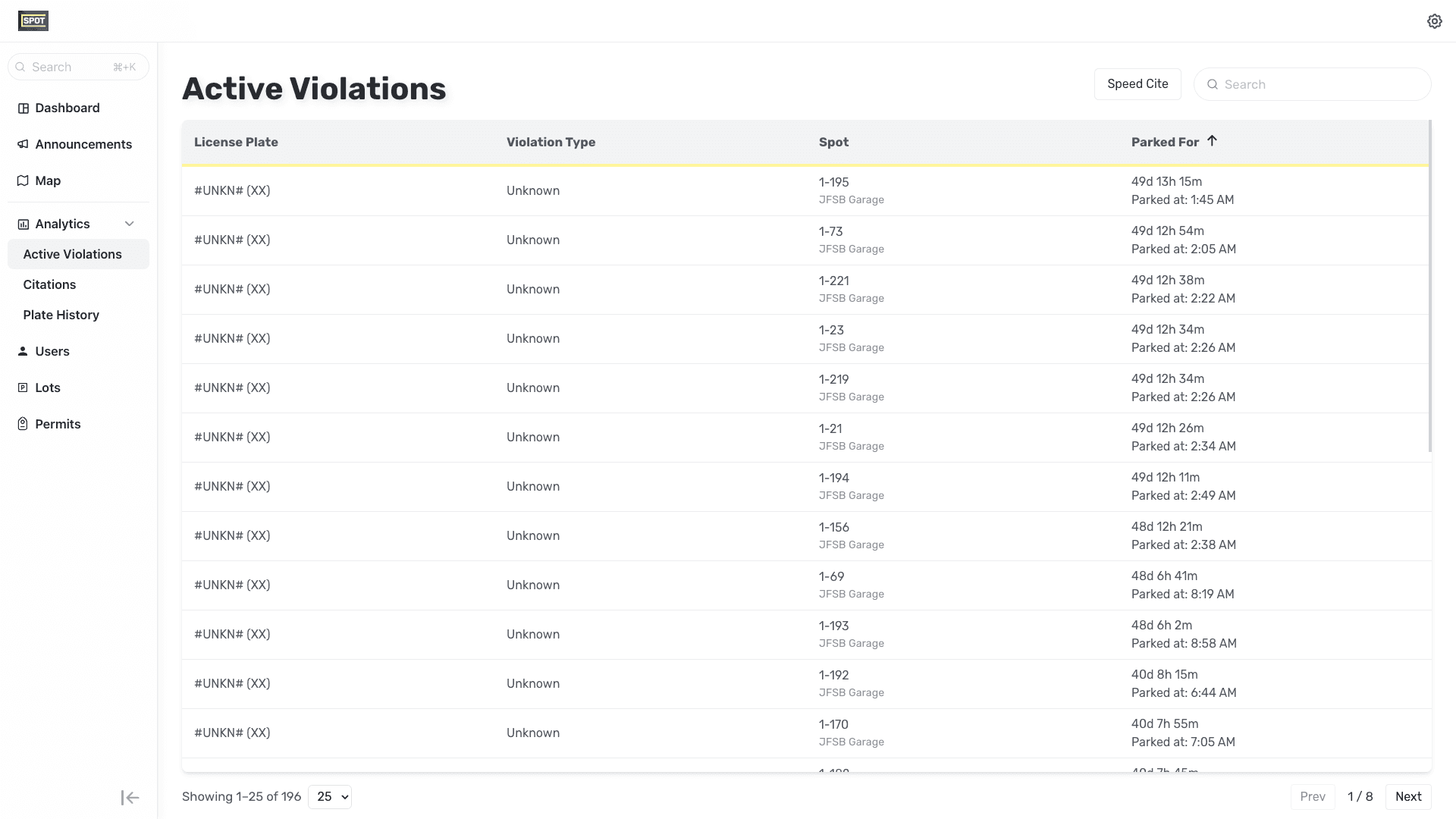
Under #https://admin.spotparking.app/analytics/active-violations | Active Violations#, you can see all the violations currently on campus, with short descriptions for each. Feel free to click the columns headers to sort, or search to filter. 🚨Also don't for get about #https://admin.spotparking.app/analytics/speed-cite | Speed Cite™# at the top right. Here you can quickly go through pending violations to cite digitally, or mark important for your in-field compliance team.
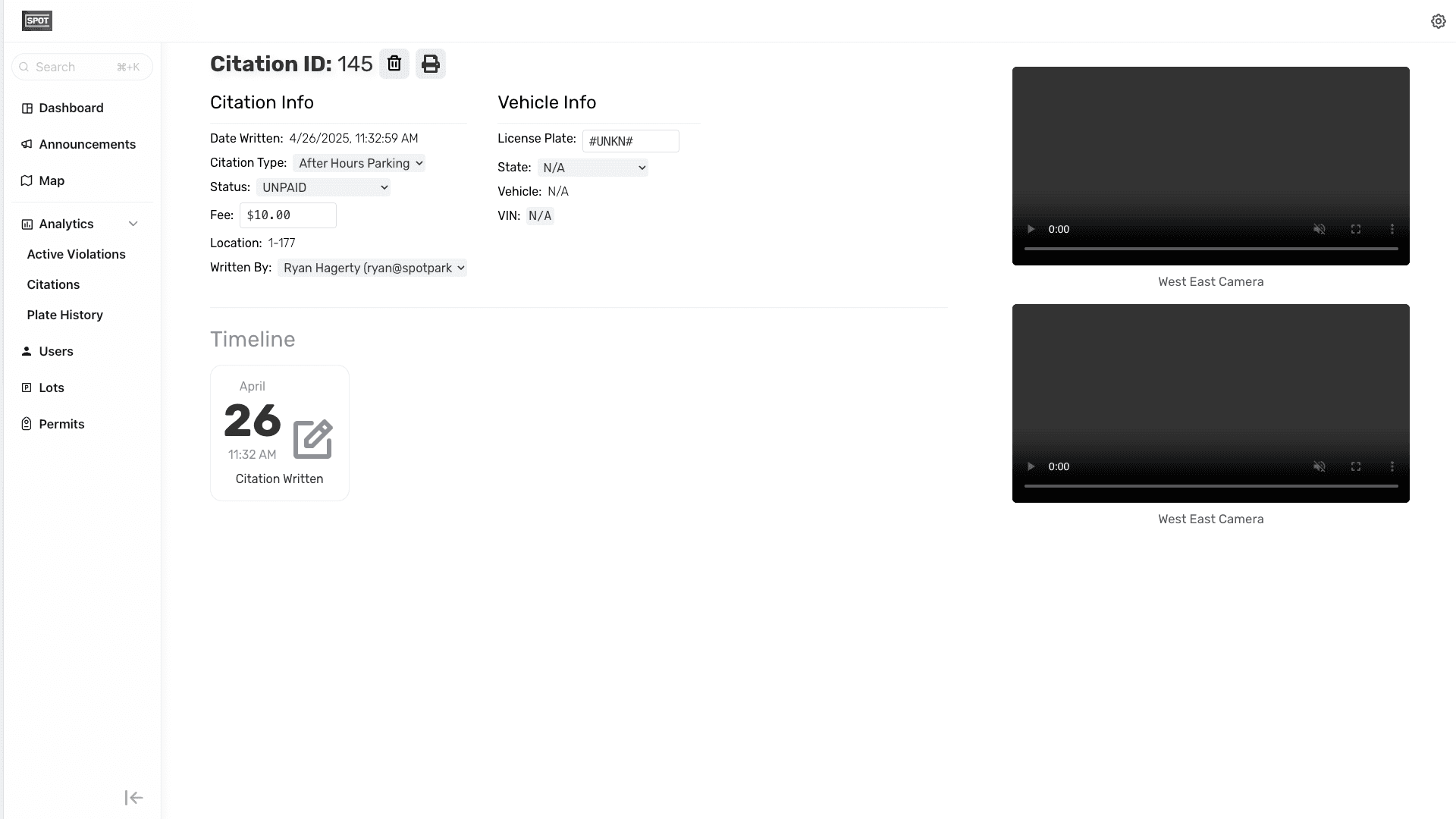
Citation View is used to view and print an existing citation. Click on a citation in the #https://admin.spotparking.app/analytics/citations | Citations# page. In Citation View, you can view all available information including ticket information and plate history of the vehicle. You can adjust the price if necessary in the ticket information section. You can also view the citation's timeline from when it was written to when it was paid including any appeal information. On the right you can even view any available images or videos collected automatically through the Spot Parking system or through your compliance team.
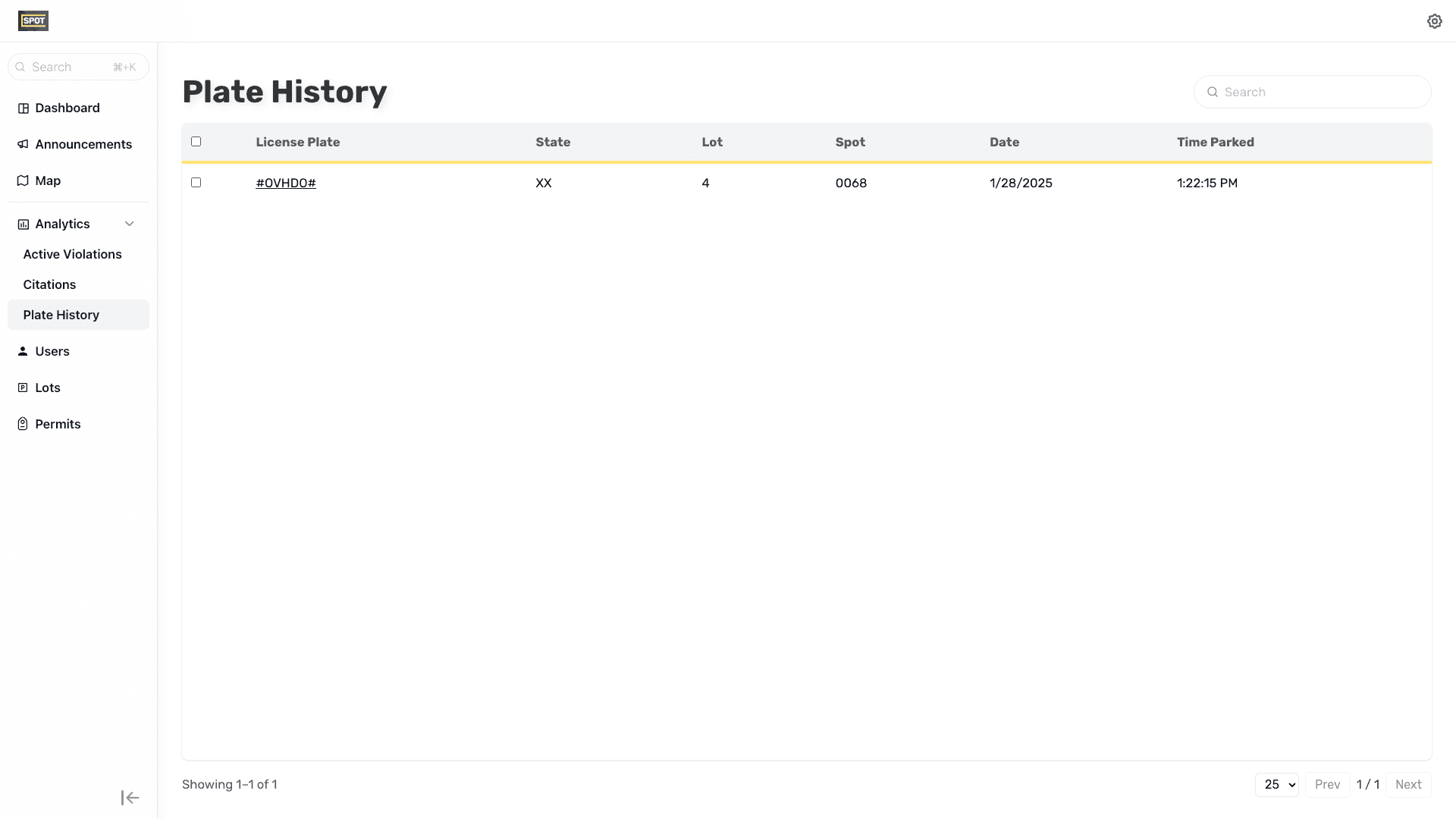
The #https://admin.spotparking.app/analytics/history | Plate History# page is the database of every vehicle that has parked on campus since the day the system was installed. Using the search bar at the top you can search specific license plates (helpful when looking for repeated offenders or stolen vehicles). You can see how many times the vehicle has been on campus, how many parking tickets it has received, as well as the date of the last time it was seen on campus. When you click on a license plate you can see all the violations they have received as well as the option to edit any of their visits.
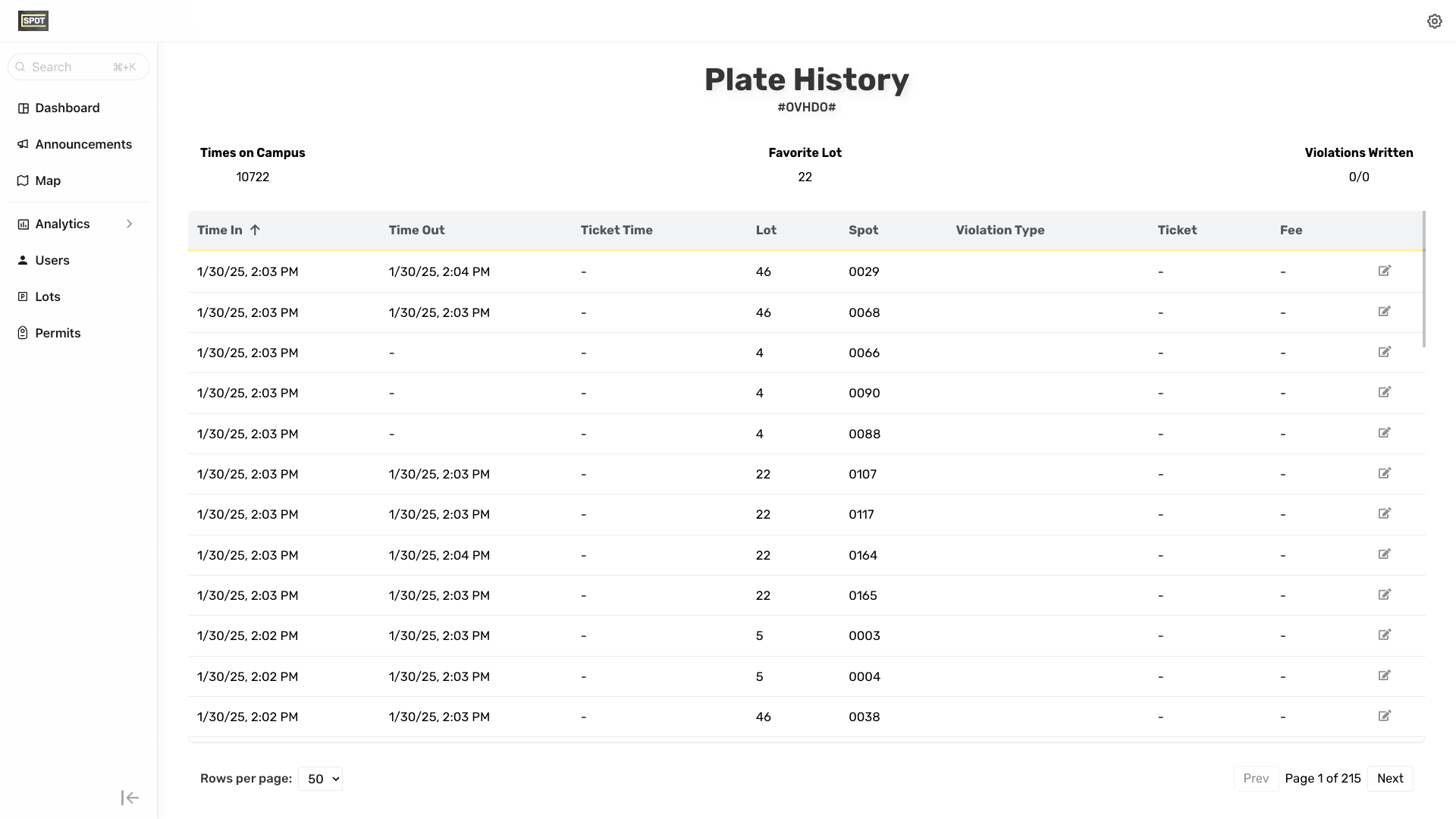
This page shows the entire visit history of a given vehicle. You're able to view quick stats as well as a list of all their visits that have been automatically captured. Any of these visits can be modified or saved.
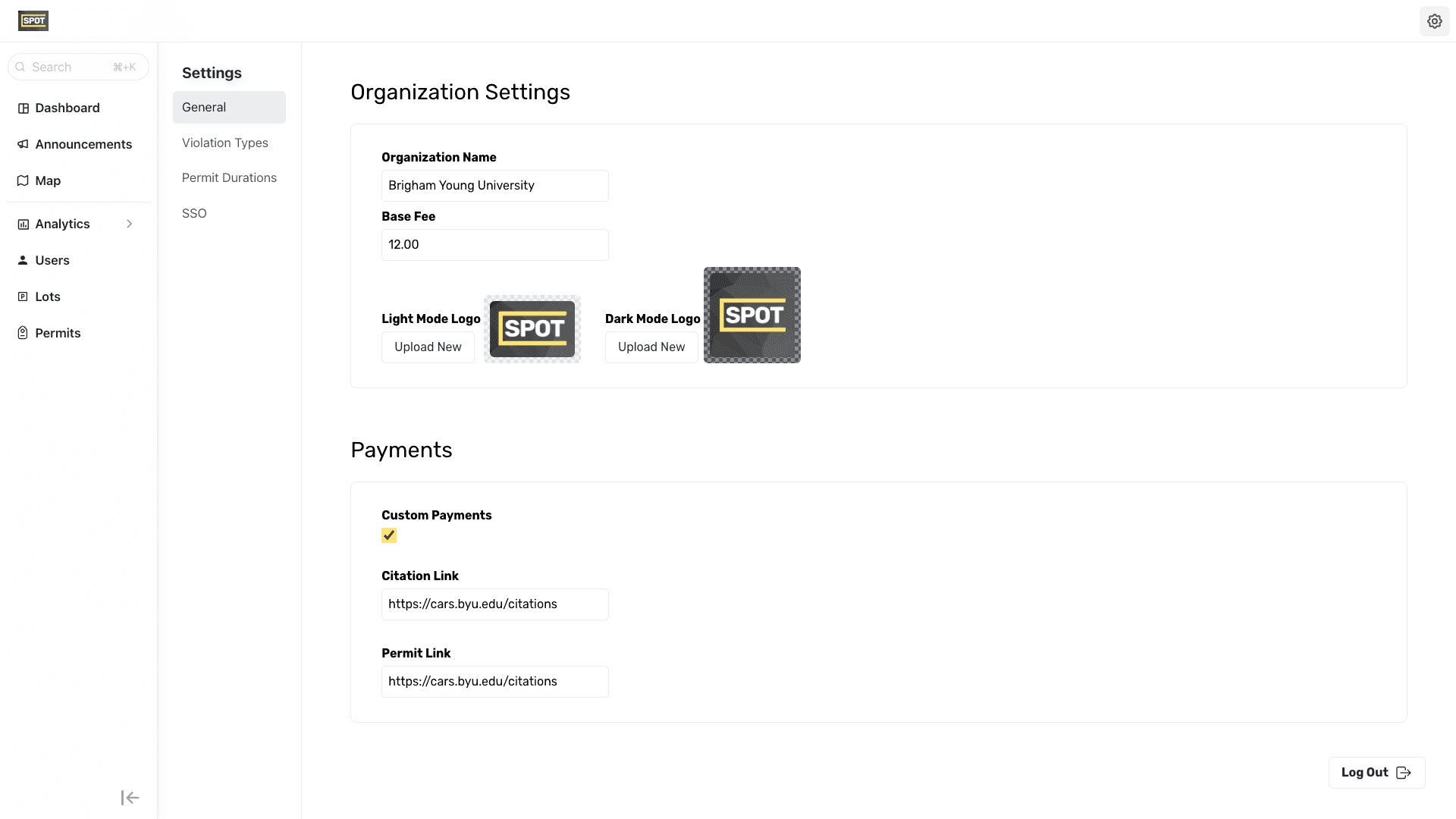
#https://admin.spotparking.app/settings | General Settings# is the hub for all the information pertaining to your organization. During onboarding, Universities will fill this information out, however here in you can change any of this information. If you need help understanding what one of the sections means please go to the FAQs or find the small info buttons throughout the Admin Portal.
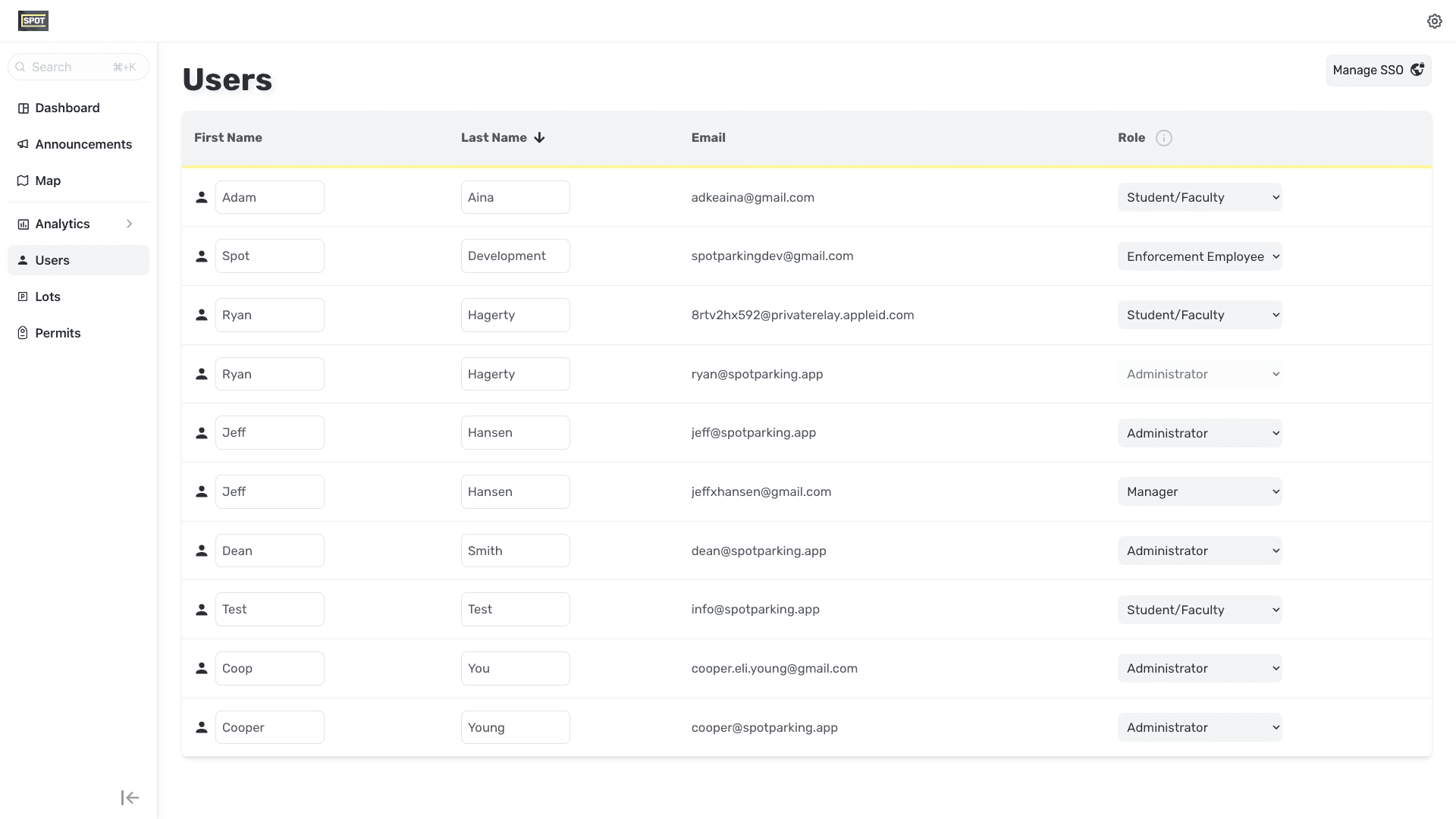
In the #https://admin.spotparking.app/users | Users# page, you can see every student, faculty member, or compliance team member that uses the Spot Parking system. Depending on the permission given, that will change what they have access to see. Here you can also add or delete employees or change current employee information. Information regarding permission levels are detailed below:
  • Student/Faculty - These users can use the Spot Parking™ mobile application and view all occupied spaces as well as available spaces that pertain to their permit level.
  • Enforcement Employee - Users with this permission level gain access to the Spot Watch™ mobile application which can be used to view and write parking citations. They do not have access to the Admin Portal however they also inherit permissions from the Student/Faculty level.
  • Administrator - These users are able to use the Admin Portal and all it's features. They are also able to use the Spot Parking™ and Spot Watch™ mobile applications. Administrators are also able to adjust the permission levels of other administrators except for their own.
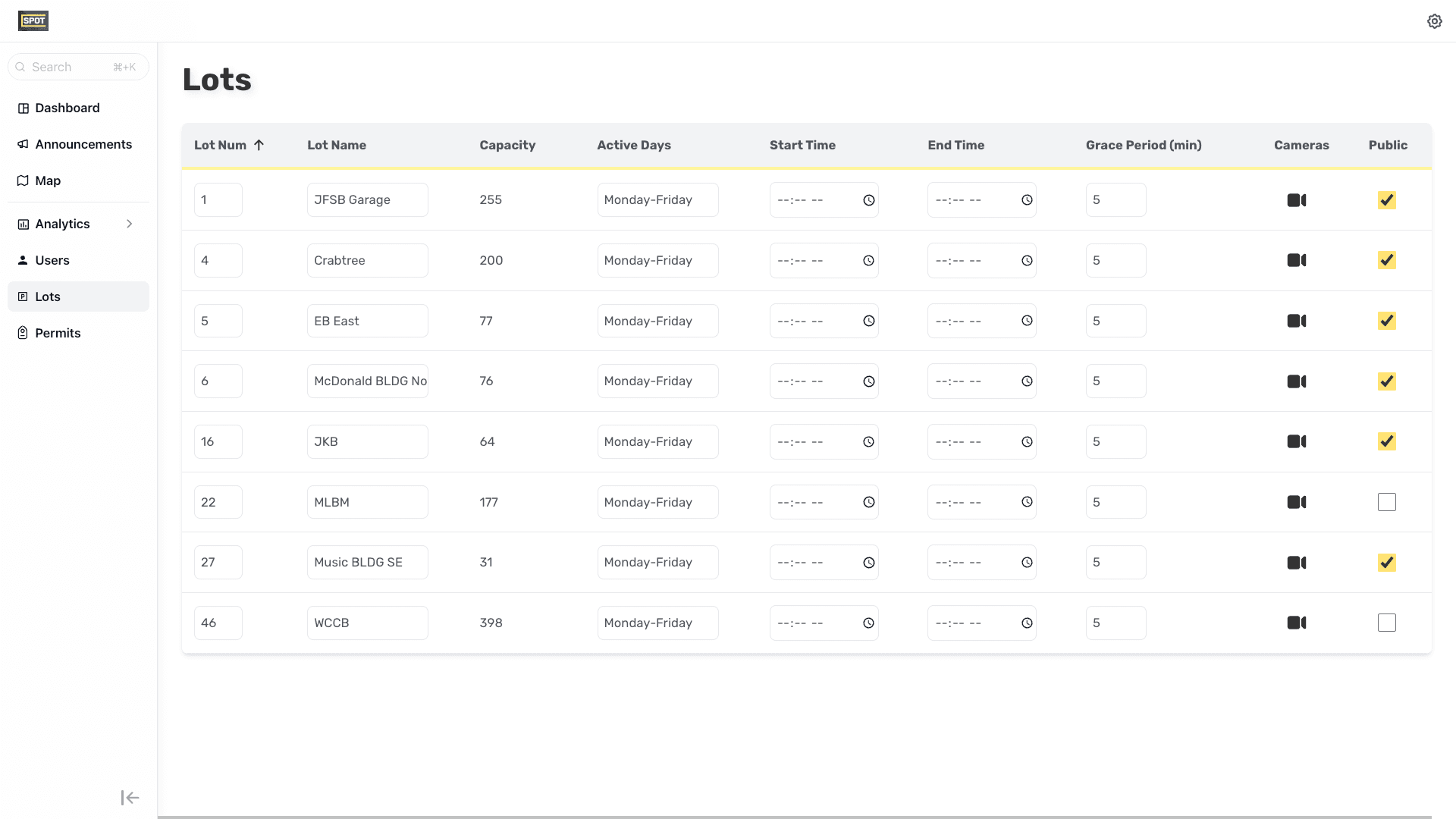
In the #https://admin.spotparking.app/lots | Lots# settings, you can edit the parking lots that were previously registered during the onboarding process. You can change what parking it is, what parking permit is required, what days and time of day the lot is enforced as well as the grace period. If you would like to add, remove, or change the configuration of a parking lot, contact our team directly through the Admin Portal.
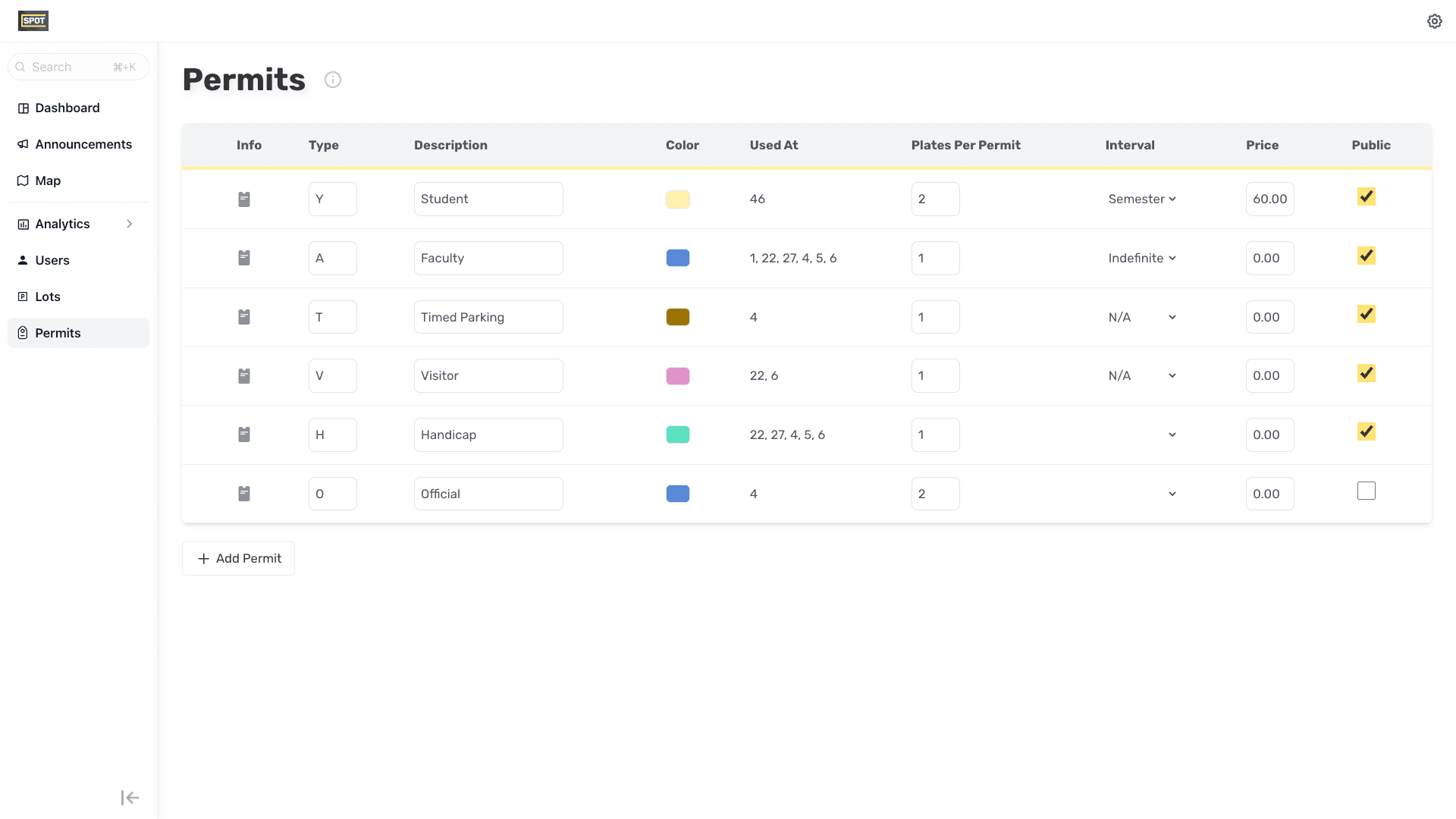
The #https://admin.spotparking.app/permits | Permits# settings page is where all the permits registered during onboarding are found. You can edit the permit type (usually permits are represented by a letter), as well as the description of the permit. You also have the capability to completely remove a permit type or add a new one if necessary. The "Used At" column is auto-populated. If you'd like to adjust this, modify individual stall types through the Spot Editor for a camera.

Related Articles